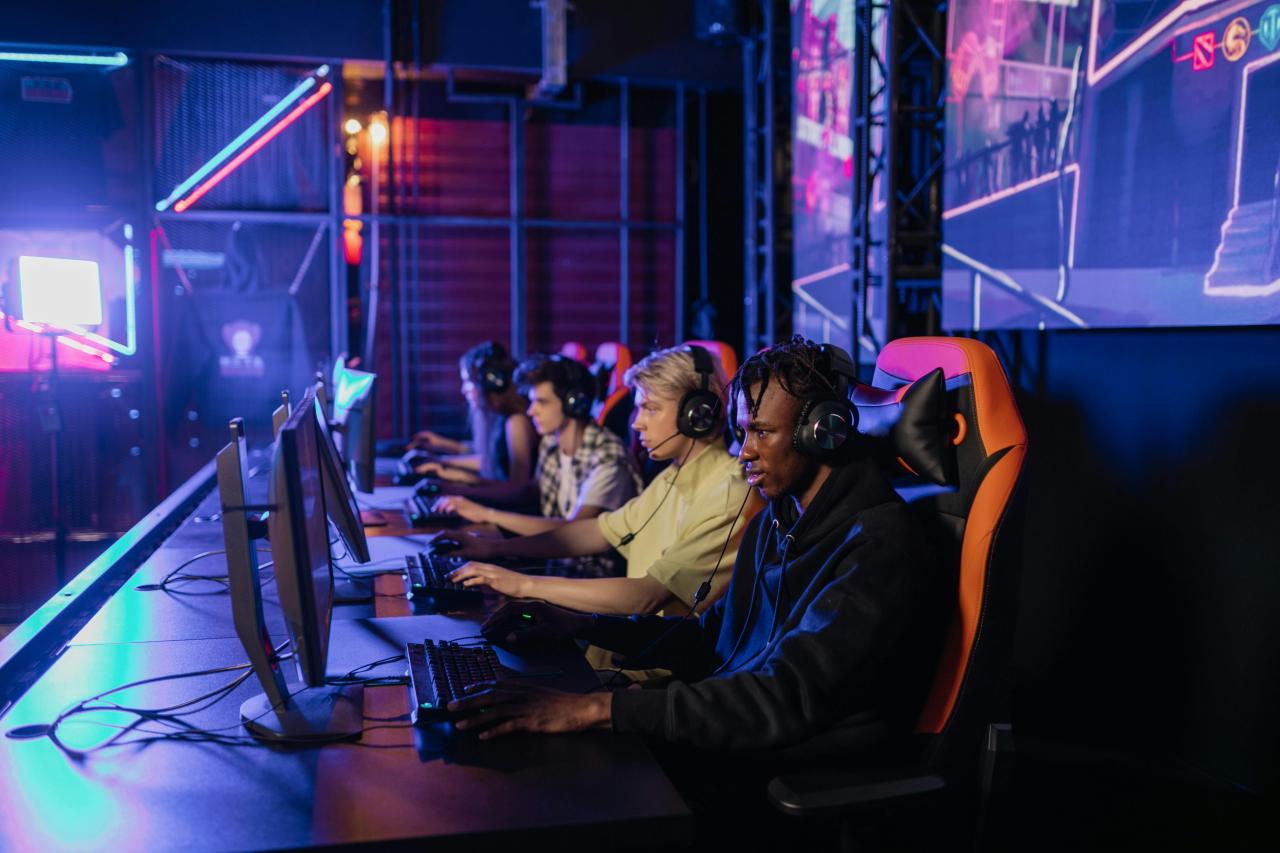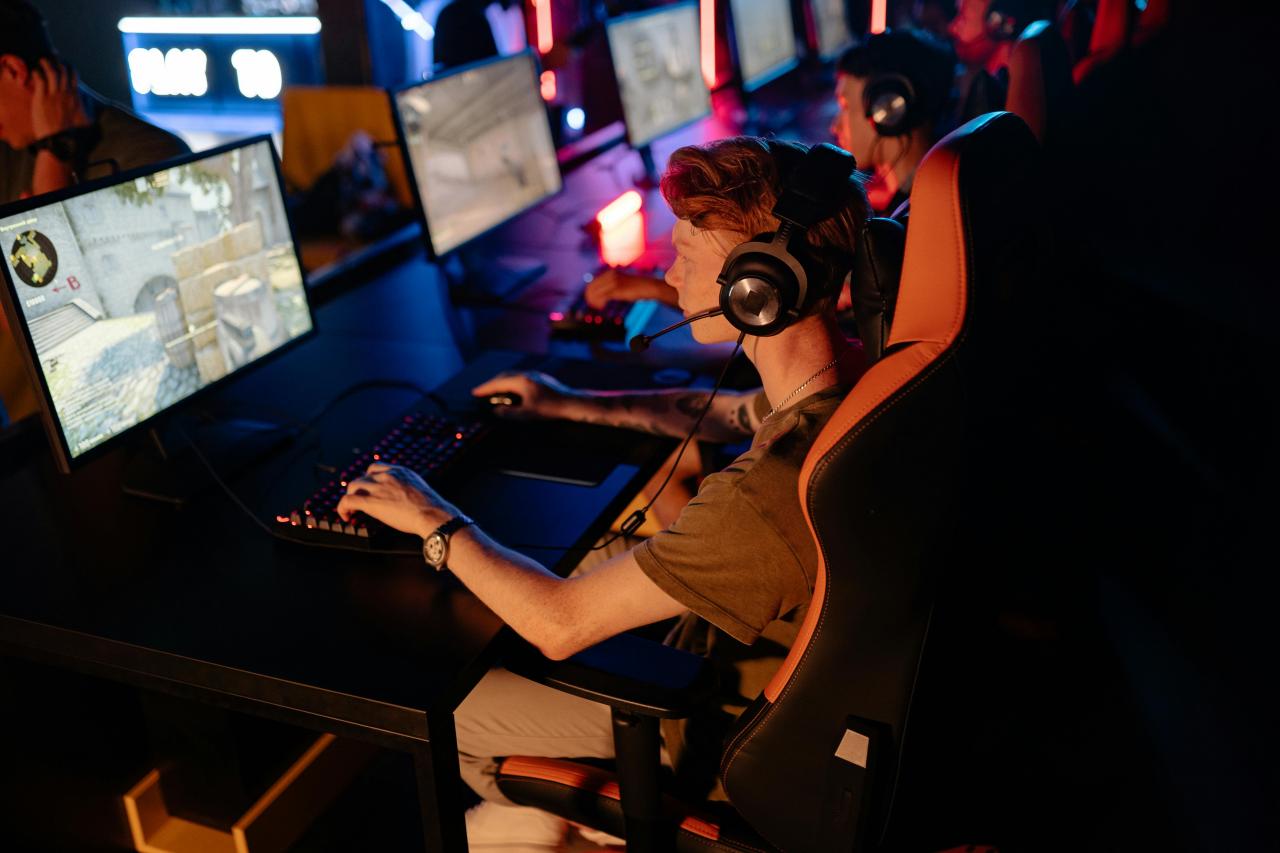
Entering the world of competitive gaming requires more than just raw talent and fast reflexes to reach the top tiers of the global leaderboards. Most players overlook the fact that professional gamers spend hundreds of hours fine-tuning their software and hardware configurations to eliminate every possible millisecond of delay.
When you watch a championship match, you are seeing the result of extreme technical optimization that allows the player to act and react with superhuman precision. Achieving peak performance means creating a seamless bridge between your physical movements and the digital environment of the game.
Many enthusiasts struggle to improve because their current settings actually hinder their ability to aim accurately or track fast-moving targets. By aligning your configuration with the standards used by elite athletes, you can remove the invisible barriers that are holding back your true potential.
This comprehensive guide will break down the essential adjustments needed to transform your setup into a professional-grade station.
We will explore everything from mouse sensitivity and monitor refresh rates to the subtle Windows tweaks that give you a competitive edge. Let us dive into the technical foundations of pro settings to help you dominate your next match with total confidence and clarity.
Mastering Mouse Sensitivity and DPI Precision

A. Finding Your Perfect DPI Baseline
Most professional players choose a DPI (Dots Per Inch) setting between four hundred and eight hundred to ensure maximum control over their crosshair. While high DPI sounds impressive, it often leads to pixel skipping and jittery movements that make long-range tracking nearly impossible.
A lower DPI forces you to use your entire arm for large movements, which is much more consistent than relying solely on your wrist. If you currently play on a very high setting, try lowering it gradually to see how your muscle memory adapts to the increased precision.
Many top-tier aimers find that eighty percent of their accuracy comes from this fundamental change in their physical input method.
B. Calculating Effective Sensitivity (eDPI)
To truly compare your settings with the pros, you must calculate your eDPI by multiplying your in-game sensitivity by your mouse DPI. This number provides a universal standard that accounts for the different ways games handle input data.
For example, a sensitivity of two at four hundred DPI results in an eDPI of eight hundred, which is a common sweet spot for tactical shooters. Understanding this metric allows you to replicate the exact “feel” of a pro’s setup regardless of the specific hardware you are using.
I recommend aiming for an eDPI that allows you to perform a one hundred eighty-degree turn across the full width of your mousepad.
C. Disabling Windows Mouse Acceleration
You must ensure that the “Enhance Pointer Precision” setting in your Windows control panel is turned off immediately. Mouse acceleration changes your cursor speed based on how fast you move the mouse, which completely destroys your ability to build consistent muscle memory.
Without a one-to-one ratio between your hand and the screen, you will never be able to flick to targets with the same accuracy twice.
Professionals rely on “Raw Input” settings within their games to bypass Windows processing entirely. This simple fix is the most important step in creating a reliable foundation for your mechanical skill development.
D. Choosing the Right Polling Rate
The polling rate determines how often your mouse reports its position to your computer, and you should always set this to one thousand Hertz. A higher polling rate reduces input lag and makes your cursor movement feel significantly smoother during intense firefights.
Some modern mice offer even higher rates, but one thousand remains the gold standard for compatibility and performance. Ensure your computer’s CPU can handle the increased data flow without causing stutters in your gameplay.
Using a high-quality mousepad with a consistent surface also helps the sensor read these high-frequency updates more accurately.
Optimizing Visuals for Maximum Frame Rates
A. Adjusting Graphics for Competitive Clarity
In the professional scene, visual beauty is always secondary to performance and high frame rates. You should set most of your graphical options, such as shadows and foliage, to the lowest possible level to maximize your Frames Per Second (FPS).
Lowering these settings also removes visual clutter, making it much easier to spot enemies hiding in dark corners or behind bushes. Shadows can sometimes provide a tactical advantage, so consider keeping them at a medium level if the game allows for it.
I suggest focusing on “Effect Detail” and “Model Detail” to ensure that character silhouettes remain sharp and recognizable at long distances.
B. Mastering Resolution and Aspect Ratio
Many pros use a “stretched” aspect ratio like four-to-three because it makes enemy models appear wider and easier to hit on the screen. While this might look blurry at first, the increased target size provides a significant psychological and mechanical advantage in fast-paced duels.
If you prefer a native sixteen-to-nine resolution, ensure you are using the highest refresh rate your monitor supports. Some players even lower their resolution to 1080p on a 1440p monitor to squeeze out every possible frame from their hardware.
Finding the balance between a sharp image and a high frame rate is the key to maintaining visual awareness during chaos.
C. Digital Vibrance and Color Saturation
Increasing the digital vibrance in your GPU control panel can make the colors in your game pop and help differentiate enemies from the background. Professionals often push their saturation levels higher than normal to make dull environments look more vibrant and readable.
This tweak is especially helpful in games with muted color palettes where character models tend to blend into the scenery.
You can use software tools or your monitor’s internal settings to achieve this look without affecting your overall system performance. I have found that a thirty percent increase in saturation can significantly reduce eye strain during long gaming sessions.
D. Field of View (FOV) Optimization
A higher Field of View allows you to see more of the environment on your flanks, but it also makes objects in the center of your screen appear smaller. Most professional players find a balance between ninety and one hundred three degrees to maintain a good sense of their surroundings without sacrificing target size.
If you play a game that involves a lot of close-quarters combat, a wider FOV can prevent you from being “blinded” by enemies moving quickly past you. Experiment with different FOV settings to see which one gives you the best sense of spatial awareness and aiming comfort.
Remember that changing your FOV will also slightly change your perceived sensitivity, so adjust your mouse settings accordingly.
Fine-Tuning Audio for Tactical Awareness
A. Enabling Spatial Sound and Stereo Modes
Clear audio is your best legal “wallhack” because it allows you to hear footsteps and reloads through walls before you ever see the enemy. You should always use a high-quality stereo headset and disable any “virtual surround sound” software that can muffle the directionality of noises.
Games are designed to provide accurate spatial data through simple stereo channels, and extra processing often adds unnecessary delay and distortion.
I recommend using the “Night Mode” or “Loudness Equalization” settings if the game has them to make quiet footsteps louder while dampening loud explosions. This allows you to track multiple targets by sound alone without damaging your hearing over time.
B. Managing In-Game Volume Levels
You must balance your game volume so that critical tactical sounds are loud enough to hear over your teammates’ voices in communication apps. Lower your music volume to zero and reduce ambient environmental noises like wind or birds to the minimum setting.
This ensures that your brain only processes information that is relevant to winning the match and staying alive. Many pros use a “Master Volume” of one hundred percent but lower individual categories within the game menu to fine-tune the experience.
Keeping your voice chat volume at a level where you can still hear the game’s directional cues is the secret to successful team coordination.
C. Upgrading Your Audio Hardware
While software tweaks help, a high-fidelity pair of open-back headphones can provide a much wider “soundstage” for better positional accuracy. Open-back designs allow air to move through the earcups, which makes sounds feel like they are coming from a specific distance rather than just inside your head.
If you are serious about competitive play, moving away from “gaming” branded headsets toward studio-grade headphones can be a massive revelation. Pair these with a dedicated Digital-to-Analog Converter (DAC) to eliminate any electrical static or noise from your motherboard.
High-quality audio is the most underrated part of a professional-grade setup and provides an immediate boost to your game sense.
D. Utilizing Sound Visualization Tools
Some modern motherboards and software packages offer “sound radars” that show you the direction of noises on your screen. While these can be helpful for beginners, they often act as a distraction and can sometimes be flagged by anti-cheat systems.
The goal should always be to train your ears to recognize the specific frequency of footsteps and weapon swaps. If you struggle to hear certain sounds, use an equalizer to boost the “high-mids” where the sound of gravel or metal footsteps usually resides.
I have found that a slight boost in the 2kHz to 4kHz range can make enemy movements much more distinct against the background noise.
Optimizing Windows and System Latency
A. Enabling Game Mode and High Performance
Windows has several built-in features that can either help or hurt your gaming performance depending on how they are configured. You should always enable “Game Mode,” as it prioritizes your CPU and GPU resources for the active game while pausing background updates.
Additionally, set your power plan to “Ultimate Performance” to ensure your hardware is never throttled to save energy during a match.
These small changes ensure that your system is always pushing the maximum possible power to your game engine. It prevents sudden “frame drops” that usually happen at the exact moment you engage in a firefight.
B. Reducing Input Lag with NVIDIA Reflex
If you use an NVIDIA graphics card, ensure that “NVIDIA Reflex Low Latency” is set to “On + Boost” in your game settings. This technology synchronizes the CPU and GPU to reduce the “click-to-display” latency, making your mouse clicks feel much more responsive.
Reducing input lag by even five milliseconds can give you a massive advantage in a game where reaction times are measured in tenths of a second.
Most modern competitive titles support this feature, and it is a mandatory setting for any player looking to reach a professional level. It makes the game feel “snappier” and ensures that your movements are reflected on the screen as fast as physically possible.
C. Cleaning Up Background Processes
Every app running in your background, from your web browser to your RGB lighting software, consumes valuable CPU cycles and memory. Before starting a competitive session, use the Task Manager to close any unnecessary programs that are not vital to your game.
Some “gaming” software can actually cause micro-stutters and input delay, so consider using “Lite” versions of your drivers if they are available.
I suggest keeping your startup apps to a bare minimum to ensure your Windows environment is as lean as possible. A clean system is a fast system, and a fast system is a winning system in the world of elite gaming.
D. Optimizing Network Stability and Ping
A low and stable ping is essential for ensuring that your shots actually register on the server before the enemy moves. Always use a wired Ethernet connection instead of Wi-Fi to eliminate the packet loss and jitter that can ruin a competitive match.
You can also use “Network Prioritization” tools in your router to ensure that gaming data is given the highest priority over other household traffic.
If you live far from the game servers, consider using a dedicated gaming VPN that offers optimized routing for lower latency. I have seen players lower their ping by twenty percent simply by switching to a high-quality CAT6 cable and updating their router’s firmware.
Conclusion
Reaching peak performance is a continuous journey of technical and physical refinement. Your settings should act as an extension of your body and mind. The pros do not use fancy settings for style but for survival.
Invest the time to learn your own metrics like eDPI and latency. Small changes in your configuration often lead to massive gains in skill. Never stop experimenting until you find the perfect balance for your gear.
Consistency in your setup leads to consistency in your actual gameplay. A professional station is a lean and highly optimized machine for winning. Respect the technical side of gaming as much as the mechanical side.
Your true potential is waiting behind a few clicks in the menu. The road to the top tiers starts with a stable and fast environment. Thank you for choosing this guide to help you level up today.
May your frames be high and your input lag be nonexistent. The digital arena is yours to conquer with these elite settings. Enjoy the process of becoming the best version of yourself as a player. Your dedication to the craft will eventually show on the global stage.